 My Fuel Dock
For Webmasters
Everything you need to set up a My Fuel Dock price board on a marina's website.
Getting started
Marina creates an account
The marina operator signs up at myfueldock.com/register with their marina name, email, city, and state.
After email verification, they land on the Dashboard where they enter fuel prices and configure their price board.
Marina configures the price board
In the portal, the marina sets fuel types, enters prices, and picks a board template. Scroll down to see all the boards in action, with their sizes.
Free accounts get one template:
- Free Board: Vertical price list with default colors and a “Powered by myfueldock.com” footer.
Paid accounts unlock eight premium templates with custom colors and custom branding:
- Standard Board: Vertical price list with optional location, payment, hours, and discount details.
- Banner: Resizable horizontal strip with an optional responsive mode.
- Sidebar: Resizable vertical strip that stacks the title, prices, and optional details.
- Minimal: Plain-text fuel names and prices with no chrome; pick the font, size, and color.
- Hero: Tall full-width focal section with big prices and an optional photo background.
- Mobile Sticky Bar: Slim strip pinned to the bottom of the screen on phones.
- Floating Corner: Floats in a corner of every page, or just the ones you choose; collapses to a small pill.
- Marquee: Full-screen wall display for a monitor, TV, or tablet; a public URL, not an embed.
You install the embed code
The marina copies their embed block from the Board Setup screen and sends it to you. For a board that sits in the page it is an <iframe> followed by a one-line loader script. Paste the whole block where you want the prices to appear:
In-page board
<iframe
  id="mfd-board-BOARD_ID"
  src="https://mfdboard.com/board?m=MARINA_ID&b=BOARD_ID&phone=PHONE"
  width="300"
  height="260"
  frameborder="0"
  style="display:block;border:0;background:transparent;max-width:100%;"
  loading="lazy">
</iframe>
<script src="https://mfdboard.com/mfd.js" data-marina="MARINA_ID" data-board="BOARD_ID"></script>
You don't need to touch the width and height. Those lines are just a safe starting size for the split second before the board loads. The board measures itself and snaps to the right size the moment the page opens, so it always fits its own content and won't stretch your layout or leave an empty gap. Leave them as they are and paste the block exactly as the marina sent it.
The MARINA_ID, BOARD_ID, and PHONE values are filled in for you. The phone number comes from the marina's profile and drives a "Call for current fuel prices" fallback if the board ever can't load. The loader script sizes the board to its content and automatically turns on the marina's phone bar (the Mobile Sticky Bar) if they've added one. Once it is pasted, the marina changes everything else from their dashboard and you never touch it again.
Two boards use a one-line block instead (the loader line on its own), because they pin themselves to the screen rather than sitting in the page:
One-line block (Floating Corner / Mobile Sticky Bar)
<script src="https://mfdboard.com/mfd.js" data-marina="MARINA_ID" data-board="BOARD_ID"></script>
- Floating Corner: paste its line on each page where the corner card should appear. It shows only where you paste it.
- Mobile Sticky Bar (the phone bar): usually nothing to paste. It shows up on phones automatically wherever any of the marina's boards are already installed. Paste its line only on a site with no other board.
One marina can have several boards. Each board is its own block; paste each where it belongs (and the same block can go on more than one page).
A price board loads from mfdboard.com and shows the marina's live prices in the look and colors they chose. A board that sits in the page is a lightweight <iframe>; the one-line loader script pasted alongside it sizes the board and automatically turns on the marina's phone bar (the Mobile Sticky Bar) on phones. The Floating Corner is placed like any other website board. Its one-line code goes on each page where the marina wants the corner card. Marquee is different again: a public URL you open full-screen on a TV, monitor or tablet, with nothing to embed.
It is the same one block everywhere, and the marina controls the rest from their dashboard. The in-page board works on any site that allows embeds. The script-powered extras (the phone bar, the corner card, live auto-resize) need the platform to run our script in the page, which a couple of site builders don't allow. Read What to expect on your platform below before you promise a marina a sticky bar.
What to expect on your platform
The straight version, so nothing bites you on the one site where it matters:
- In-page boards work everywhere that allows embeds at all. The board is a plain iframe, so it renders the same on WordPress, Squarespace, Wix, GoDaddy, Shopify, Weebly, Drupal, and hand-coded sites.
- Floating boards (Mobile Sticky Bar, Floating Corner) work on most platforms, but not inside Wix or GoDaddy Website Builder. Those two seal a pasted embed inside their own box, so a bar that should stick to the whole screen gets trapped in the box instead. On a Wix or GoDaddy site, use an in-page board and skip the floating ones.
- Plan gates. WordPress.com needs a Business or Commerce plan, and Squarespace needs a Core plan or higher, before they allow any embed at all (iframe or script). On the lower plans neither works. That is the platform's limit, not ours.
Everything else (prices, colors, what the board shows, switching the in-page board's look, turning the sticky bar on or off) the marina changes from their dashboard with no help from you, once the block is pasted.
Platform-specific instructions
WordPress.org (self-hosted)
- Go to the page or post where you want the price board.
- Add a "Custom HTML" block (in the block editor, click +, search "HTML").
- Paste the embed code into the block.
- Click Preview or Publish.
WordPress.com
- Confirm your WordPress.com plan is Business or higher (see the note above if you're not sure).
- Edit the page or post where you want the price board.
- Add a "Custom HTML" block (in the block editor, click +, search "HTML").
- Paste the embed code into the block.
- Click Preview or Publish.
Squarespace
- Confirm your Squarespace plan is Core or higher. The Basic plan can't run iframe embeds.
- Edit the page and click a content area.
- Click the + button and choose "Code" under Embed.
- Paste the embed code.
- Toggle off "Display Source" and save.
Wix
- In the Wix Editor, click + Add Elements.
- Choose Embed Code > Embed HTML.
- Drag the element to where you want it.
- Click "Enter Code", paste the embed code, and click Update.
GoDaddy Website Builder
- Edit your page and click Add Section.
- Choose HTML and drag it to your page.
- Click the HTML element, paste the embed code, and save.
Shopify
- In your Shopify admin, go to Online Store > Pages (or the page you want to edit).
- Click the page and switch to the HTML editor (click the <> icon).
- Paste the embed code where you want the price board to appear.
- Click Save. For theme sections, go to Online Store > Themes > Customize, add a "Custom Liquid" section, and paste the code there.
Weebly
- In the Weebly editor, drag an "Embed Code" element onto your page from the Build panel.
- Click the element and select "Edit Custom HTML".
- Paste the embed code into the HTML editor.
- Click outside the element to save, then Publish your site.
Drupal
- Edit the page or block where you want the price board.
- Switch the text format to "Full HTML" (not Filtered HTML, which strips iframes).
- Click the "Source" button in the editor toolbar to switch to HTML mode.
- Paste the embed code and save. If your site uses a block layout, add a "Custom block" with Full HTML format.
Raw HTML
- Open your HTML file in a text editor.
- Paste the embed code wherever you want the price board to appear.
- Save and upload the file to your web server.
Price board templates
You can choose square or rounded corners on in-page boards
| Template | Tier | Width | Height | Best for |
|---|---|---|---|---|
| Free Board | Free | 320px | 260px | Sidebars, content areas |
| Standard Board | Premium | 300px | Grows with content | Customizable, can show payment / hours / discount |
| Banner | Premium | Configurable (600–1600px) | Configurable (60–200px) | Full-width sections, footers, hero areas. Optional responsive mode. |
| Sidebar | Premium | Configurable (120–400px) | Configurable (120–1600px) | Vertical sidebar slots, narrow column areas. Custom font + size. |
| Minimal | Premium | Configurable (40px+, default 320px) | Grows with content | Plain text fuel names + prices, no chrome. Custom font, size, color. |
| Hero | Premium | Configurable (600–1920px) | Configurable (180–800px) | Tall full-width focal section for homepage tops. Optional photo background. |
| Mobile Sticky Bar | Premium | Full screen width (mobile only) | 56, 64, or 72px | Pinned to bottom of mobile screen. Pair with another board. |
| Floating Corner | Premium | 280px | Grows with content | Floats in a corner. Put it on every page or just some. Visitor can collapse to a pill. |
| Marquee | Premium | Full screen | Full screen | Wall monitor, TV, or tablet at the marina. Public URL, not an embed. |
- Width
- 320px
- Height
- 260px
- Best for
- Sidebars, content areas
- Width
- 300px
- Height
- Grows with content
- Best for
- Customizable, can show payment / hours / discount
- Width
- Configurable (600–1600px)
- Height
- Configurable (60–200px)
- Best for
- Full-width sections, footers, hero areas. Optional responsive mode.
- Width
- Configurable (120–400px)
- Height
- Configurable (120–1600px)
- Best for
- Vertical sidebar slots, narrow column areas. Custom font + size.
- Width
- Configurable (40px+, default 320px)
- Height
- Grows with content
- Best for
- Plain text fuel names + prices, no chrome. Custom font, size, color.
- Width
- Configurable (600–1920px)
- Height
- Configurable (180–800px)
- Best for
- Tall full-width focal section for homepage tops. Optional photo background.
- Width
- Full screen width (mobile only)
- Height
- 56, 64, or 72px
- Best for
- Pinned to bottom of mobile screen. Pair with another board.
- Width
- 280px
- Height
- Grows with content
- Best for
- Floats in a corner. Put it on every page or just some. Visitor can collapse to a pill.
- Width
- Full screen
- Height
- Full screen
- Best for
- Wall monitor, TV, or tablet at the marina. Public URL, not an embed.
See them in action
Previews of each template using our demo marina.
You get to choose what information is seen on premium boards. These examples have many options turned "on."
Free Board
320 × 260px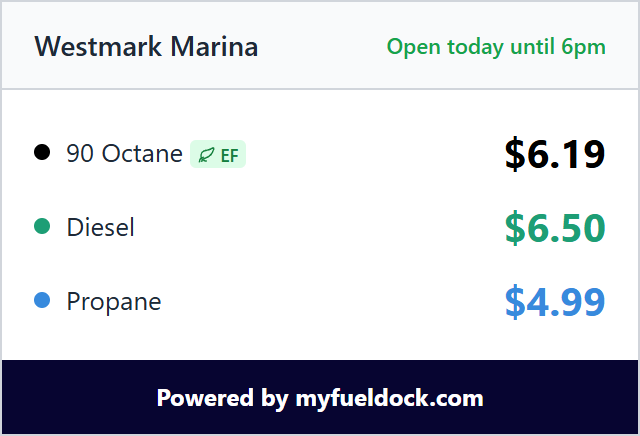
Standard Board
300px wide · gets taller with content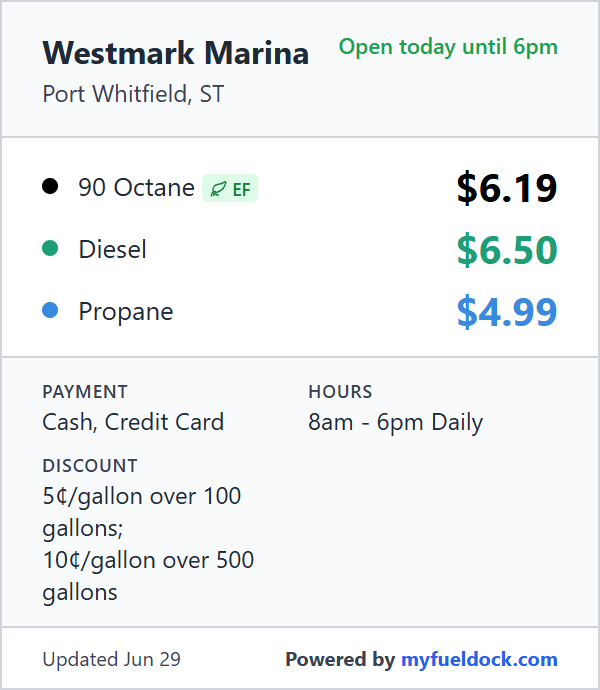
Banner
Resizable, optional responsive
Sidebar
Resizable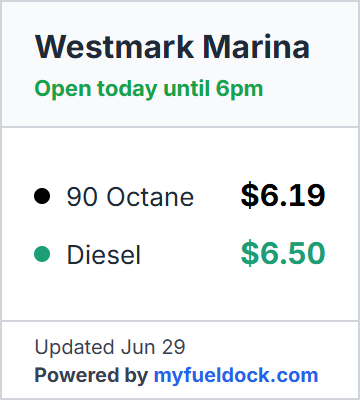
Minimal
Resizable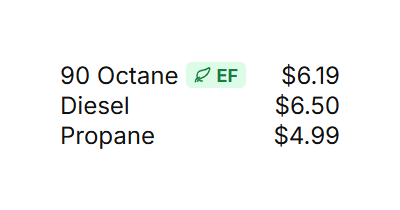
Hero
Resizable, optional responsive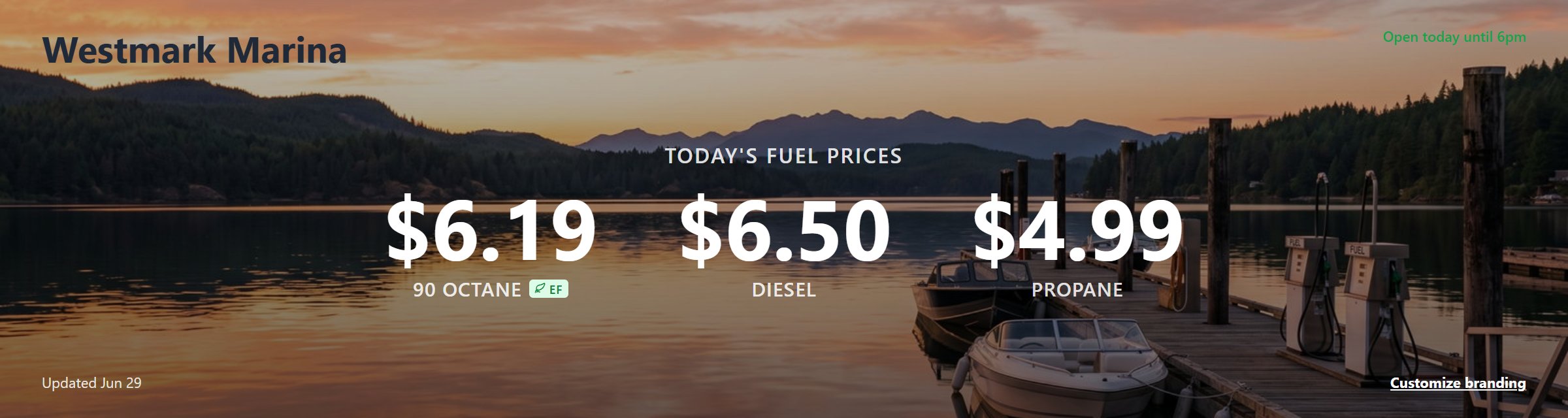
Mobile Sticky Bar
Pinned to bottom of mobile screen
Floating Corner
280px wide · gets taller with content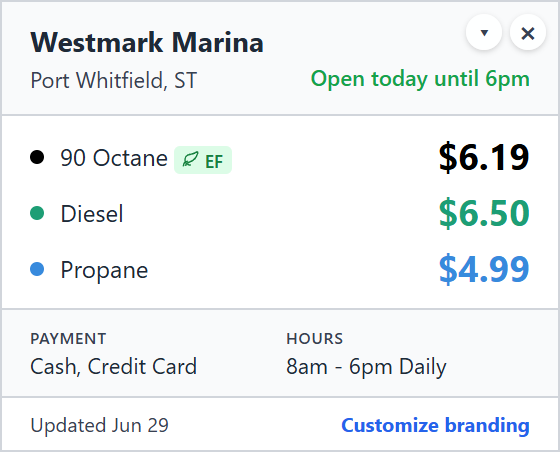
Marquee
Full-screen public URL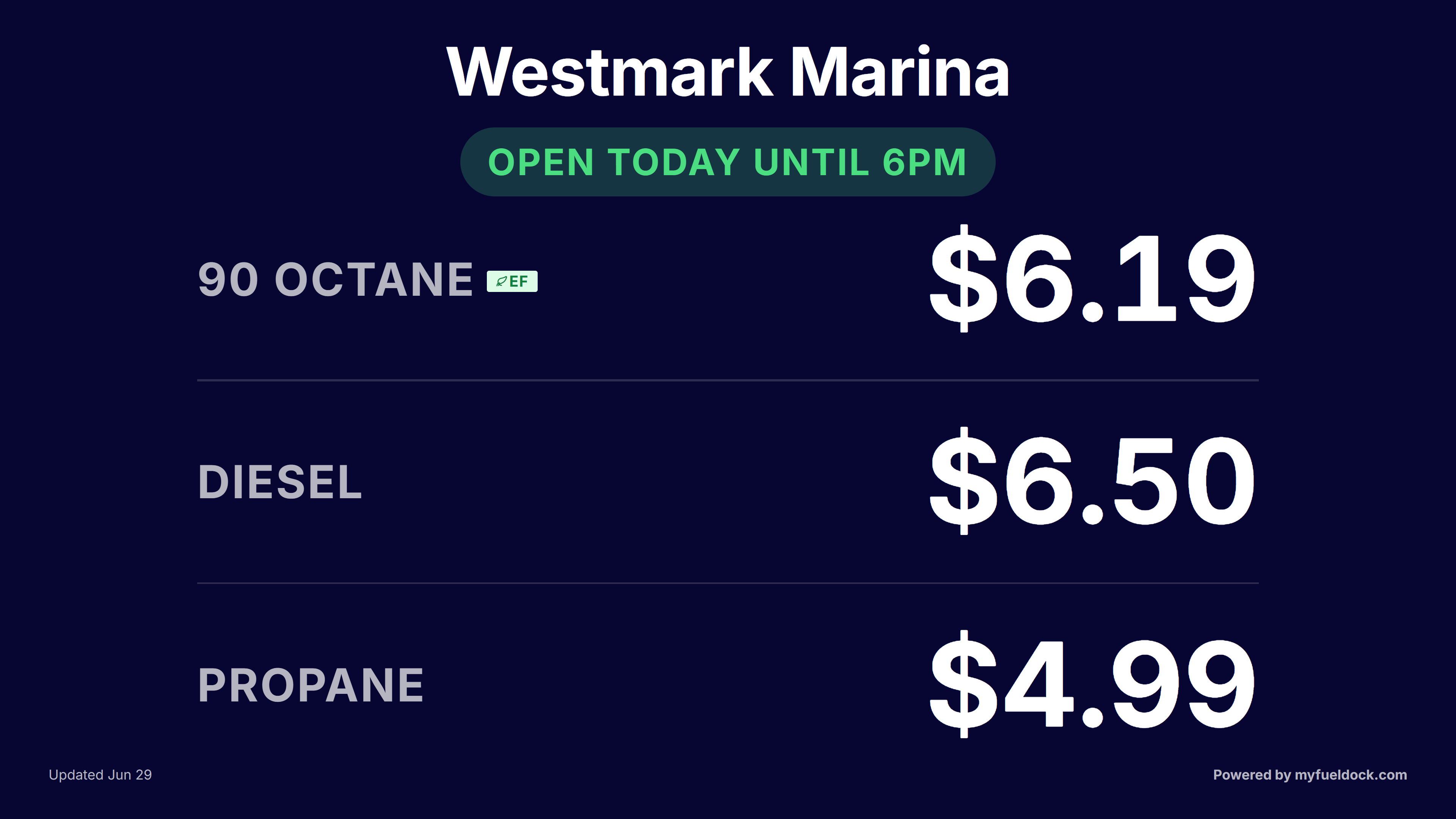
How the marina updates prices
Once installed, any price change appears on the website immediately. The marina has three ways to update:
Web portal
Log in at myfueldock.com and use the Dashboard.
Text
Text prices to (401) BOAT-GAS(401) BOAT-GAS, just type naturally. (Premium feature)
Common questions
Does it slow down my website?
No. The iframe loads asynchronously with loading="lazy", so it doesn't block your page from rendering. The price board itself is under 10KB, unless you add a photo to the Hero board.
Does it work on mobile?
Yes. All templates are responsive and look great on phones, tablets, and desktops.
How quickly do prices update?
Instantly. When the marina owner changes a price, the board shows the new price on the next page load. No caching delay.
Can I style the board to match the site?
Yes, with a paid account. The marina owner configures custom colors in their My Fuel Dock portal. If you need specific colors, ask them to update their board settings.
Can I have multiple price boards?
Yes, with a paid account. You can embed the board on multiple pages or even use different templates on different pages.
What if I change my website design?
If you move it to a different page, just copy the same embed code to the new location.
Is there a JavaScript API?
There's no JavaScript API for you to call into. Every board comes with a one-line loader script we provide: for an in-page board it sits next to the iframe, and for a floating board it is the whole block. Marquee is a standalone URL. Either way, you just paste what the marina sends you.
What if the board doesn't load?
If the embed code includes a phone number (the &phone= parameter), visitors will see a friendly fallback panel that says "Call for current fuel prices" with a clickable phone number. If no phone is provided, a simple error message appears. Either way, check that the embed code URL is correct and that the site allows iframes from mfdboard.com.
Do I need to update my website code when prices change?
No! That's the whole point. The marina updates prices once (dashboard or app) and every embedded board on the site updates automatically.
Will I ever need to paste new code?
For everyday changes, no. Prices, colors, what the board shows, its size, even switching a website board between its looks all update on their own once the block is installed. New code only enters the picture when the marina adds a new board: a new in-page board or Floating Corner is a fresh block to paste where they want it. The phone bar usually needs no paste at all. It rides along automatically once any board is installed.
How much does it cost?
There's always a free option. A free account gets one price board template (Free Board) with default colors and a "Powered by myfueldock.com" footer, plus one price change per day. A paid account ($19/mo or $195/year) unlocks premium templates and a host of features.
Need a printable version?
Use Ctrl+P / Cmd+P to save this page as a PDF.
Need help?
Email support@myfueldock.com and we'll help you get set up.